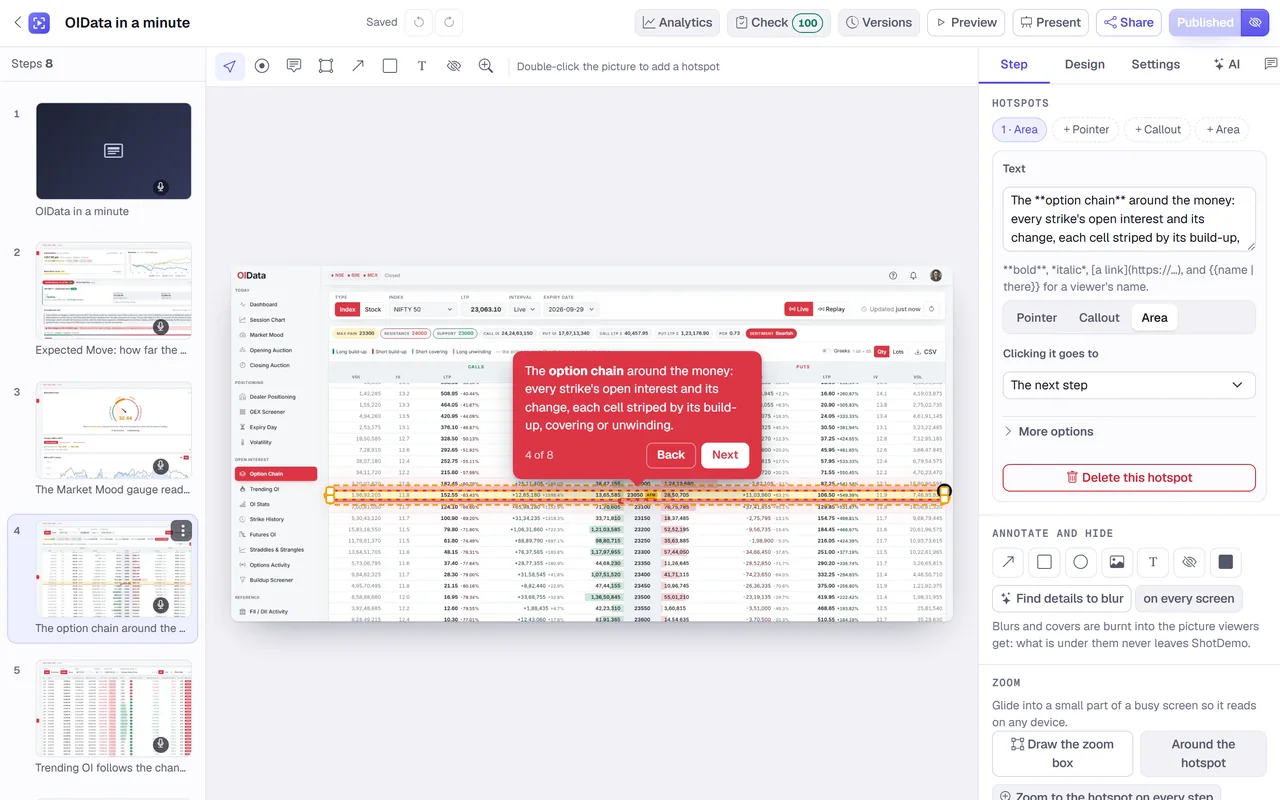
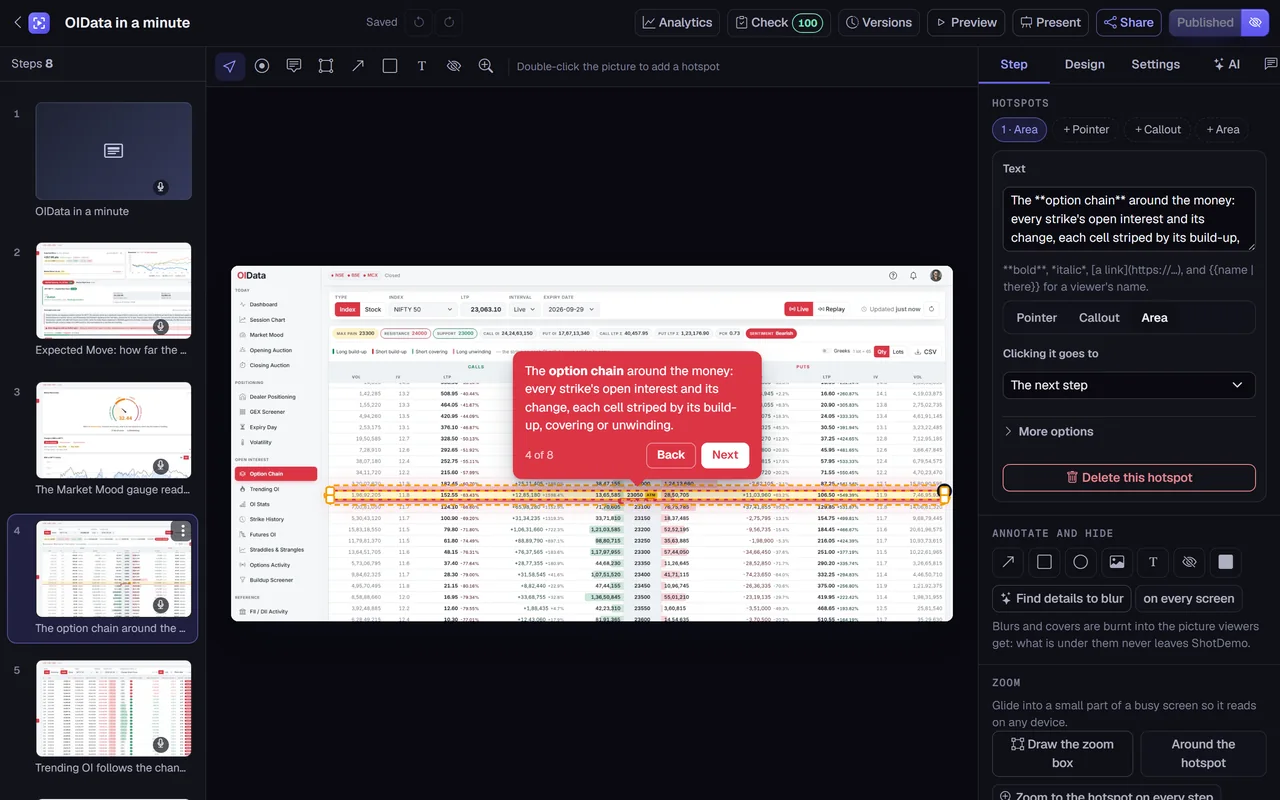
How it works
- Open your product in a tab and click the ShotDemo button in Chrome's toolbar, or press Alt+Shift+D.
- Click through the flow the way you would show it to a customer. The button's badge counts the steps. If you click the wrong thing, undo the last step; if you need to fix something in the product first, pause.
- Click Finish and make the demo. ShotDemo opens in a new tab, brings the steps into your account and opens the editor.
You do not need to plan the screenshots, crop them or put them in order: the order is the order you clicked in, and each picture is the screen as it was just before the click, so the hotspot sits on the thing the viewer will click.
What each step gets
- The picture before the click. The extension waits until the page is still and keeps that picture, so a menu you opened by hovering is in it, and the page that loads after your click is not.
- A hotspot where you clicked, pinned there: the AI writer can change the words, never move it.
- The words. The name of what you clicked becomes the step's line: a button's text, a field's label or a link's words, as in "Click Save report". Choosing from a list becomes "Choose Quarterly".
- Typing. When you type into a field, the step becomes a typing step: in the demo, the words type themselves into the field. Passwords, card numbers and one-time codes are never recorded; dots stand in for them.
- Blur where it matters. Password fields, card fields and email addresses on the screen get blur boxes, which the demo's viewers always get burnt into the picture. Turn the option off before you start if your screens hold nothing private, and remove any box in the editor.
- The page itself, as HTML. Unless you turn "Keep each page as HTML" off, the extension also keeps the page at each click, so viewers see it sharp at any size and you can change its words in the editor without recording again. The page holds no more than your screen showed: email addresses become blurred shapes, and text that was hidden or off the screen keeps only its shape. A page that does not come out looking like its picture is left out, and the step keeps its picture.
After you finish
The recording becomes an ordinary ShotDemo demo, so everything the editor does works on it. Rewrite a step's words or let the AI write them for a marketing tour or a how-to, add a welcome chapter and an ending with a button, put a lead form or a calendar in the middle, zoom into a small part of a busy screen, add a voice to each step and music under it. Then publish and share it: as a link, embedded on your website, help center or docs, as a popup from a button, or inside your own app. The analytics show how many people opened it, how far they went and where they stopped, and a form brings you their details.
Every demo can also be exported: as a video for YouTube and social posts, as a GIF for a changelog or an email, as a written guide with pictures for a wiki, or as an offline copy that runs from a folder.
Private by design
The extension records only after you click Start, only in the tab you started it in, and stops when you pause or finish. It follows that tab to the other pages of the same website; when the tab goes to another website, the recording pauses until you click the button there, because Chrome asks for your go-ahead on each site. It cannot read your other tabs or the sites you browse.
Nothing leaves your browser while you record: the pictures wait in the extension's own storage. When you finish, ShotDemo takes them into your account, and the extension deletes its copy; a recording you never finish is deleted after three days. The extension asks Chrome for four permissions (the active tab, running its recorder there, and two kinds of storage) and for access to app.shotdemo.com, where it hands over the recording. The privacy policy says exactly what is read and kept.
Tips for a clean recording
- Record in a demo account filled with believable data, not your own customers.
- Make the window the size of a laptop screen, around 1440 pixels wide: pictures from a huge monitor make small words in the player.
- Wait for each page to finish loading before you click: the extension keeps the last still picture, so a click during a loading spinner shows the spinner.
- Close what does not belong: notifications, chat bubbles, cookie banners and half-finished drafts.
- Keep it short. Five to twelve steps tell one story; record a second demo for the next one, and link them with a button.
Questions
Does it work in Microsoft Edge? Yes. Edge can add extensions from the Chrome Web Store: open the store page in Edge and allow extensions from other stores when it asks.
Does it record my screen as a video? No. It keeps one picture per click, which is what an interactive demo needs, and much smaller than a video. A demo can still be exported as a video afterwards.
What can it not record? Chrome's own pages, the Chrome Web Store, files and PDFs, which Chrome keeps every extension out of, and clicks inside a frame from another website, such as a payment form embedded in a page.
What does it cost? The extension is free. ShotDemo is free to try, with one demo live at a time and a small badge. Buying a demo once, for $12, removes the badge and keeps it live for good with every feature.