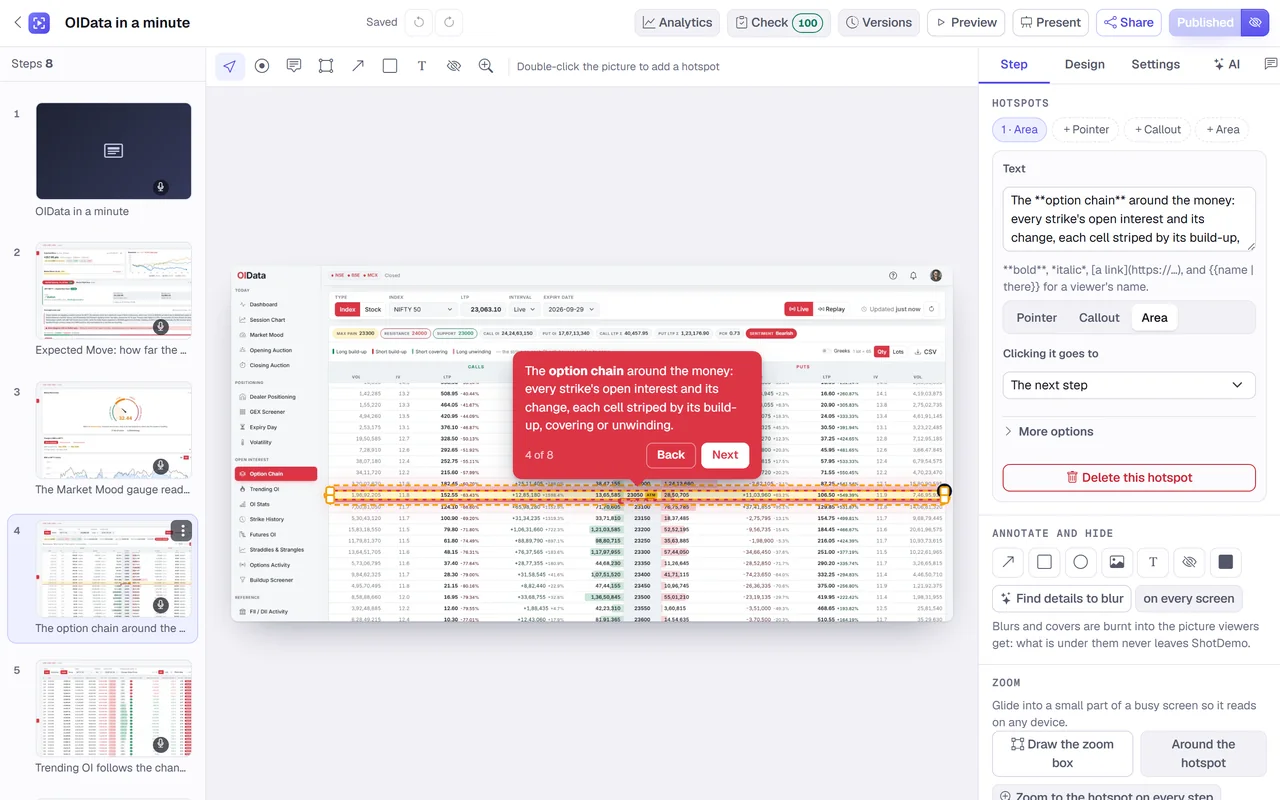
Why build the demo first
Most demo videos start with a screen recording, and most screen recordings are redone several times: a typo in a form, a notification sliding in, a slow page, a cursor wandering while you think of the next sentence. Every interface change means recording again.
Starting from an interactive demo turns that around. The screens are still pictures you chose, with every private detail already blurred. The words are already written, one or two sentences per step, and you have tested them on real viewers, because the demo's analytics show which steps people read and where they gave up. The video is then a rendering of something you know works, not a performance you hope to get right in one take.
What the video export does
When you export a published demo, ShotDemo's video engine turns each step into a scene and plans the camera itself:
- The camera goes where the hotspot is. On a step with a pointer, it pushes in gently toward that spot; on a step with an outlined area or a zoom, it frames that part of the screen, with an outline around an area.
- A pointer travels and clicks. An arrow moves to each hotspot and clicks it, with a ripple in your colour, so a viewer follows the path a person would take.
- The words become captions. Each hotspot's words appear as the step's caption, in a row of their own so they never cover the screen.
- The voice reads each step. Steps with a spoken line get it as the voice-over, in the voice you chose for the demo, or in your own recording if you uploaded one; steps without one stay on screen long enough to read. A demo set to No voice makes its video without a voice-over.
- Chapters become cards. A welcome or an ending chapter becomes a title card with its words; forms, embeds and password chapters, which ask something of a viewer, are left out of the video.
- Music and sound. The demo's music bed plays underneath, quieter while the voice speaks, with soft sounds for the clicks and the changes of screen, and the whole soundtrack is mastered to the loudness the big platforms play at.
Arrows, boxes and notes you drew on a step appear in the video too, and blurs stay blurred because the video is made from the same pictures viewers get.
Every shape from one demo
Choose 16:9 for YouTube, your website and Product Hunt; 9:16 for Reels, Shorts and TikTok; 1:1 for LinkedIn and X; or 4:5 for an Instagram feed. Each shape gets its own layout, with the caption row and the screen placed for that shape, not a crop of the wide version. You can also export a GIF, without sound, for a changelog, a help article or an email.
How long it takes
A video export renders on ShotDemo's servers while you do something else. A demo of ten steps usually becomes a video of a minute to a minute and a half, and the file is ready in a few minutes; ShotDemo emails you a link when an export takes long. Exports are kept with the demo, so you can download them again or make another shape later.
Free and bought exports
You can export one video a day for free, at 720p with a preview mark, so you can see exactly what you will get. A demo bought once for $12 exports clean full-HD videos and GIFs whenever you like, along with everything else buying a demo adds: no badge on the interactive version, lead forms, password protection, personal links and each viewer's journey.
Tips for a demo that also makes a good video
- Keep each step's words short. A caption is read in a few seconds; two short sentences work better than one long one.
- Give the key steps a spoken line. The voice carries the story when the viewer is not reading, and steps with a line set the video's pace.
- Put the hotspot on the real control. The camera and the pointer go to it, so a hotspot in the middle of nowhere makes the video wander.
- End with a chapter. A closing card with your call to action gives the video an ending instead of a last screenshot.
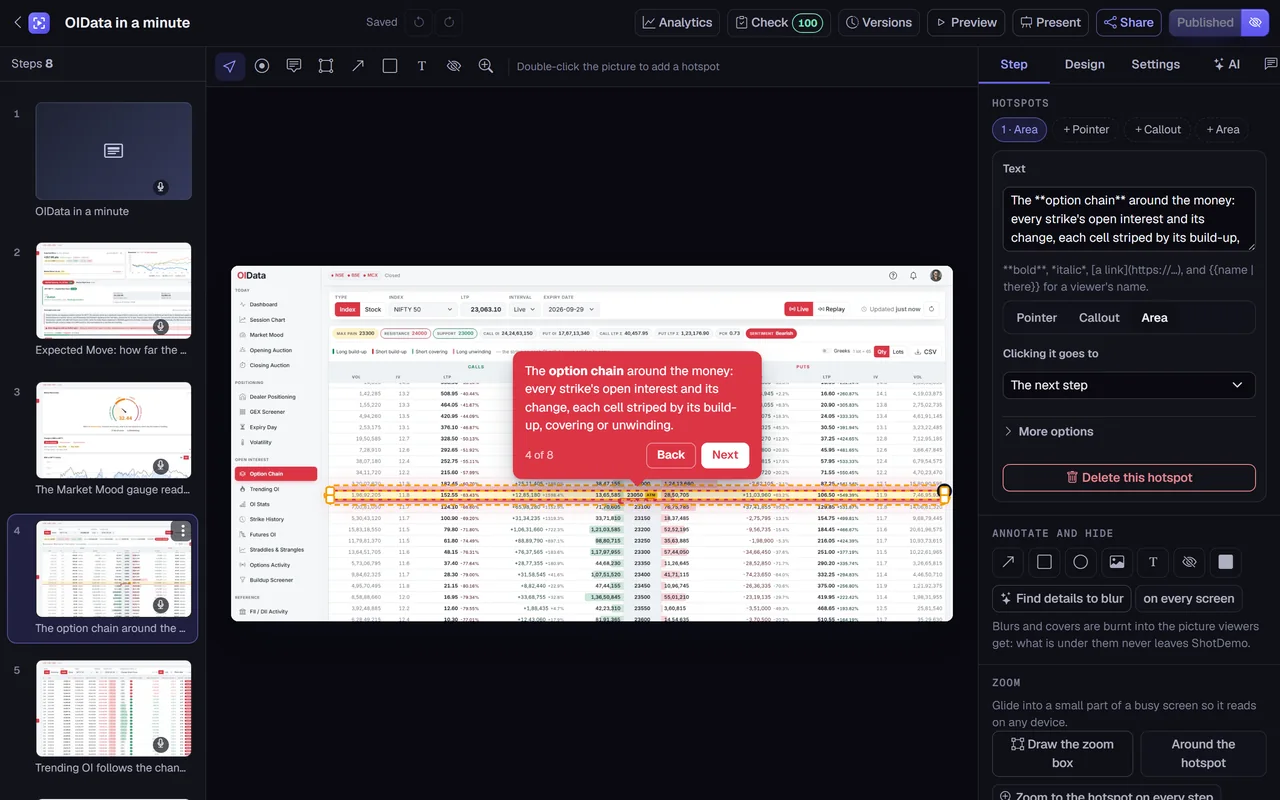
The example on this page was made exactly this way: a demo of OIData built from six screenshots in ShotDemo's editor, then exported once as a 16:9 video with a voice on every step.