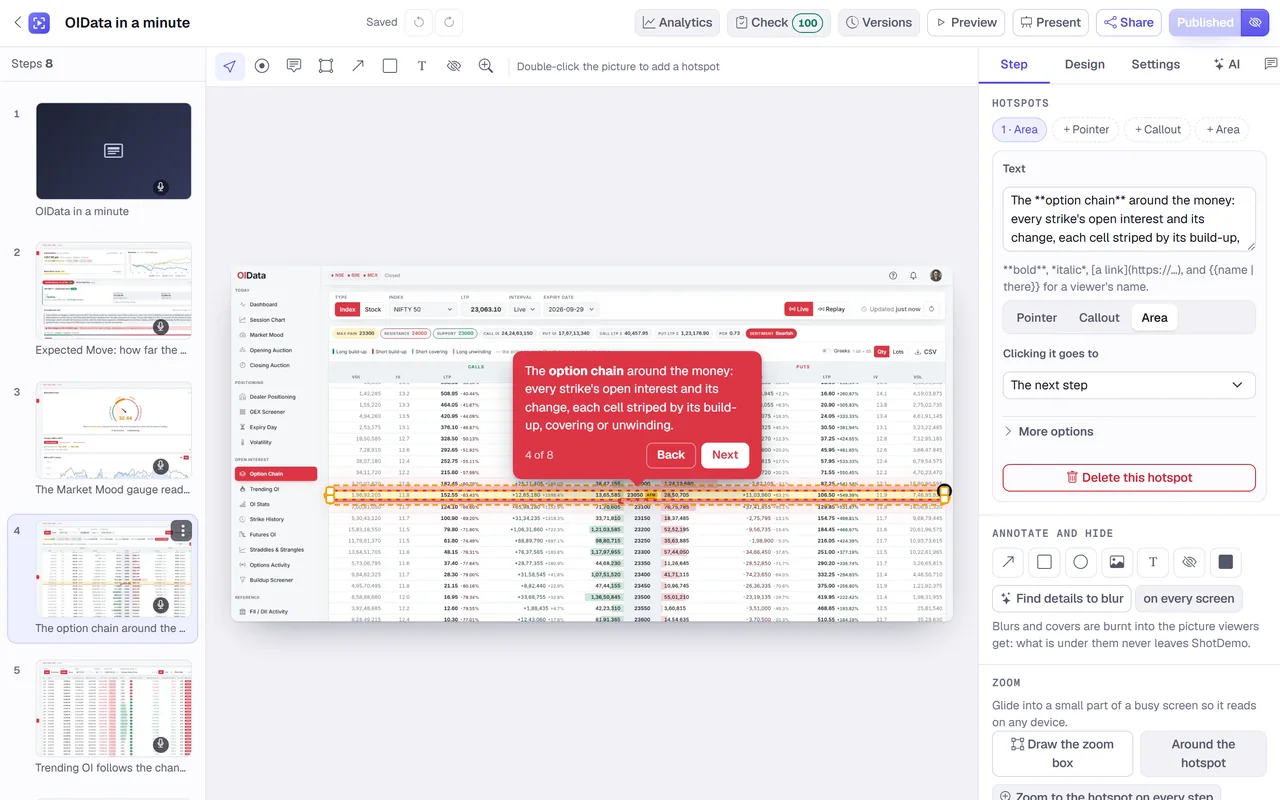
1. Pick one job the demo does
Before taking a single screenshot, write down who will watch and what they should know at the end. "A marketing manager sees how a weekly report is built in two minutes" is a demo. "Everything our product does" is a manual. One audience and one outcome keep the demo to the eight to fifteen steps people actually finish. If you have several audiences, make several demos; each is quicker to make than the one demo that tries to serve them all.
Then list the moments in order: where the viewer starts, the two or three screens where the value shows, and where they end. Leave out settings pages, empty states and anything that needs explaining before it makes sense.
2. Capture clean screens
Screenshots are the raw material, so it pays to take them with care:
- Use realistic sample data. Real-looking names, numbers and charts make a demo believable. Placeholder text and empty tables make it look unfinished.
- Keep one window size for every shot. A browser window around 1440 by 900 pixels gives sharp pictures that fit most screens; ShotDemo shapes the demo to the first picture, so keep the rest the same.
- Close what does not belong. Notifications, browser extensions, other tabs and personal bookmarks pull the eye away.
- Take one shot per moment. If a menu opens before a choice is made, capture the screen with the menu open; that is the step where the viewer learns what to click.
No screenshots yet? Give ShotDemo your website's address and it visits the public pages, captures them and turns each into a step, with its own headline as the first words. For screens behind a sign-in, screenshots are the way.
3. Put each hotspot on the thing that matters
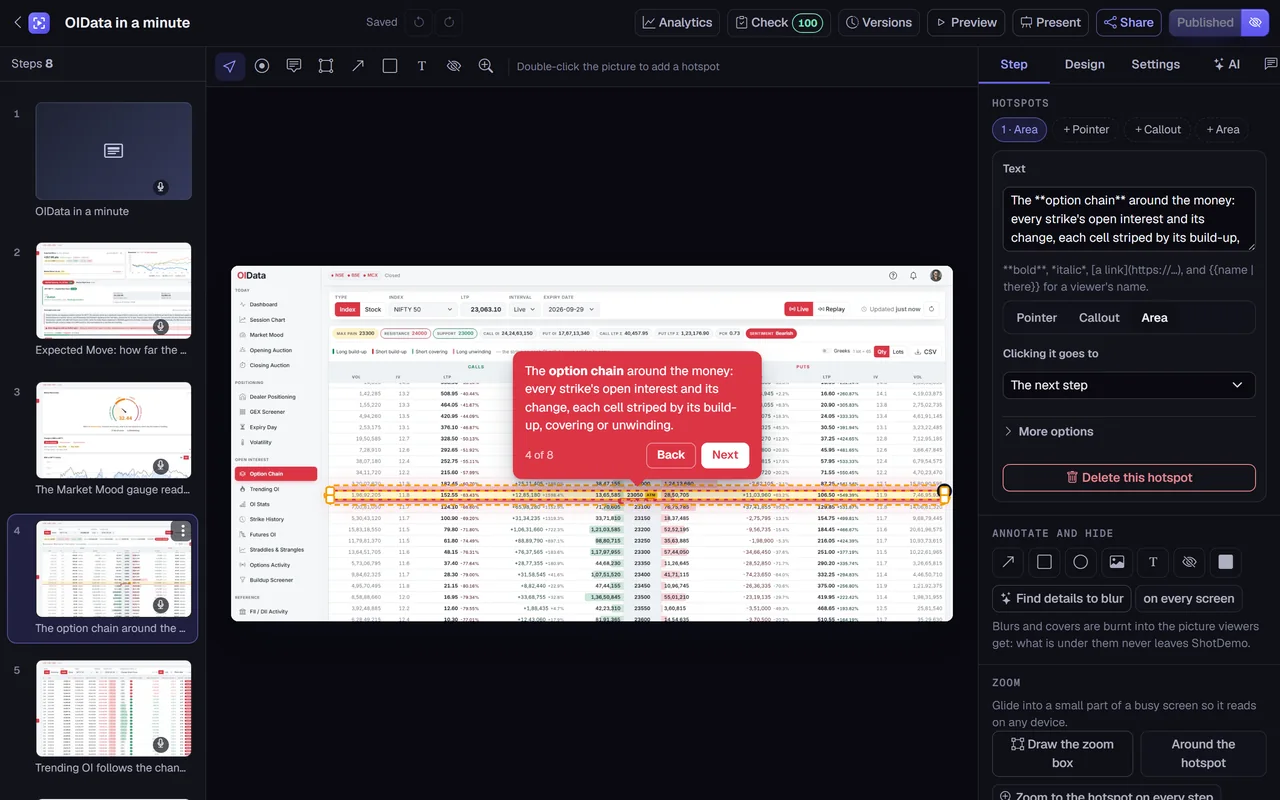
Upload the screenshots in order and each becomes a step with a hotspot waiting in the middle of the picture. Drag it onto the button, the number or the row the step is about. A pointer suits a single control, an outlined area suits a table or a panel, and a callout suits a note that is not about one element. If the screen is busy, add a zoom so the view glides into that part when the step opens.
4. Write the words for a busy reader
Each hotspot gets one or two short sentences. Start with what the viewer gains, then the action: "See which campaigns paid for themselves. Click Report to open this week's." Keep each under about twenty-five words, use the words on the screen so the eye finds the element, and bold the one name that matters. Avoid restating what the picture already shows.
You can let the AI write a first draft of every step from its screenshot, in English or another language, then edit it. It is a quick way to get past a blank page, and you stay in charge of every word.
5. Add chapters at the right moments
Chapters are cards between steps. Three are worth adding to most demos:
- A welcome at the start that says what the viewer will see and how long it takes.
- A form, if you want leads, placed after the moment the product shows its value, not in front of it. Ask for a work email and at most one or two more fields; you can let viewers skip it.
- An ending with one clear action, such as starting a trial or booking a call, using a button to your sign-up page or an embedded calendar.
A password chapter can keep the rest of a demo private to people who have the password, such as a prospect's team.
6. Make it look like yours
In the Design panel, set your colours, corners, font and logo, choose a browser frame or none, and a background for the share page. If the demo should speak, pick a voice and let it read every step, with captions for people watching without sound, or upload your own recording. Variables such as a viewer's name can appear in the words and are filled from a personal link or from your own app.
7. Publish, share and read the numbers
Publish, and the demo has a link and a page of its own. Embed it beside your headline, in your help center or in your product, open it as a popup from a button, or send a link made for one person. After a few days, open its analytics: if many viewers stop at the same step, that step is too long, too vague or in the wrong place. Shorten it, publish again, and compare. Published versions are kept, so a change that does worse can be undone.
Common mistakes
- Too many steps. If a demo passes twenty steps, split it.
- A form at the start. Most people leave rather than fill in a form before they have seen anything.
- Words that describe instead of explain. "This is the dashboard" tells the viewer nothing the picture did not.
- Out-of-date screens. When your interface changes, replace the picture of that step; its hotspot and words stay where they were.